Windows 11 phiên bản 26H2 sắp ra mắt với 7 tính năng nâng cấp
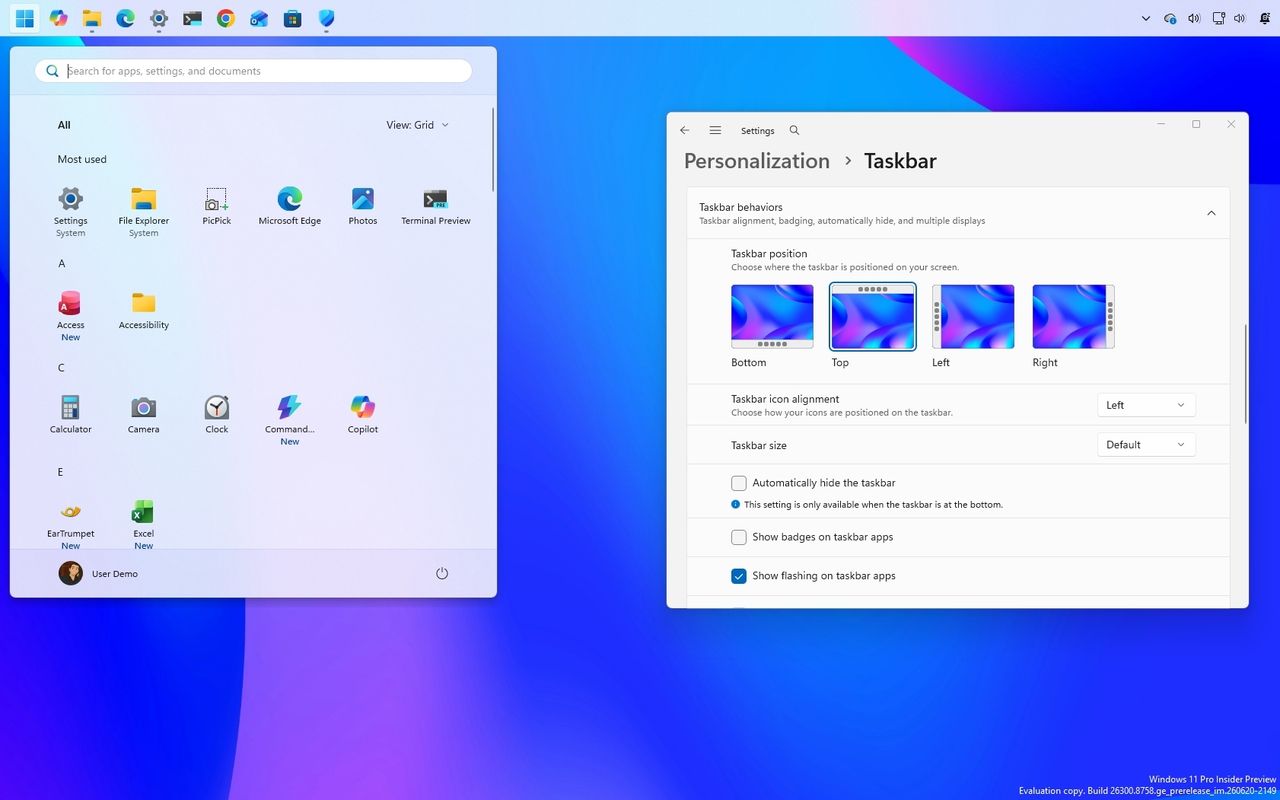
Microsoft xác nhận Windows 11 version 26H2 là bản cập nhật tính năng hàng năm tiếp theo, dự kiến phát hành trong nửa sau năm 2026. Khác với các bản nâng cấp trước đó, phiên bản này sẽ được phát hành dưới dạng gói kích hoạt nhỏ, chỉ thay đổi số phiên bản từ 25H2 lên 26H2 mà không cần cài đặt lại toàn bộ hệ thống.
Microsoft has already confirmed that Windows 11 version 26H2 i s the next annual feature update, and it's expected to roll out during the second half of 2026 . Unlike those feature drop upgrades we used to get, requiring a full installation, this release will follow the same servicing model as version 25H2 , arriving as a small enablement package that simply switches the version number from 25H2 to 26H2. Whenever the company takes this approach, I see the same reaction: "It's not a real update because it doesn't include anything new," and I don't think that's accurate. The enablement package is just the way the software giant delivers the update. It doesn't determine what's actually included in the release. Today, Windows 11 evolves through monthly cumulative updates rather than one massive annual upgrade. Throughout the lifecycle of version 25H2, Microsoft continues to roll out new features, interface improvements, and security enhancements. When version 26H2 arrives, all of those additions officially become part of the next supported release. If you're already running Windows 11 version 25H2, you'll likely receive most of these features before upgrading to 26H2. The actual installation will simply enable the new version while extending support for another two years. If you're upgrading from an older release, however, all of these improvements will arrive together, making the update feel much more substantial. That alone is reason enough not to dismiss Windows 11 version 26H2. In this guide , I'll highlight seven features and improvements I'm personally looking forward to the most. Windows 11 2026 Update (version 26H2) top features This list is not organized in any specific order. Also, at the time of this writing, the improvements are part of the Windows Insider Program, more specifically in the Experimental channel. As a result, Microsoft can choose to discard any of them at any time, and remember that the company uses a gradual rollout approach, meaning it could take time for the new improvements to reach every compatible device, even after version 26H2 has been released. 1. Ask Copilot finally feels useful Microsoft has been adding AI features across Windows 11 over the past couple of years, but not all of them have improved everyday tasks. (Image credit: Mauro Huculak) Ask Copilot aims to be something different. It introduces a new search box that brings Copilot directly into the search experience, allowing you to interact with AI while also using it as a traditional search tool. It's not just for chat-style answers. You can use it to quickly find files, open apps, or locate system settings, similar to Windows Search but with AI-assisted results layered in. What makes this feature more interesting is that it's optional. You're not forced to replace Windows Search. You can choose when to use Copilot instead. While I'm not fully convinced of Microsoft's AI integration, I like this feature because it's surprisingly fast for surfacing settings and files, and it's optional. (Image credit: Mauro Huculak) This feature can be managed from Settings > Personalization > Taskbar . This feature is expected to be available on Copilot+ PCs as well as on regular PCs. 2. A more customizable Taskbar The Taskbar is probably the part of the desktop I interact with more than anything else, so even small improvements can make a noticeable difference. (Image credit: Mauro Huculak) This new version is expected to bring long-requested customization options, including the ability to position the Taskbar anywhere on the desktop, and you'll also be able to make the Taskbar smaller. These Taskbar improvements have specific settings that can be managed from Settings > Personalization > Taskbar , and then by accessing the "Taskbar behaviors" settings to change the position and size. (Image credit: Mauro Huculak) Giving users more control has always been one of the platform's strengths, and I'd like to see Microsoft continue moving in that direction.…